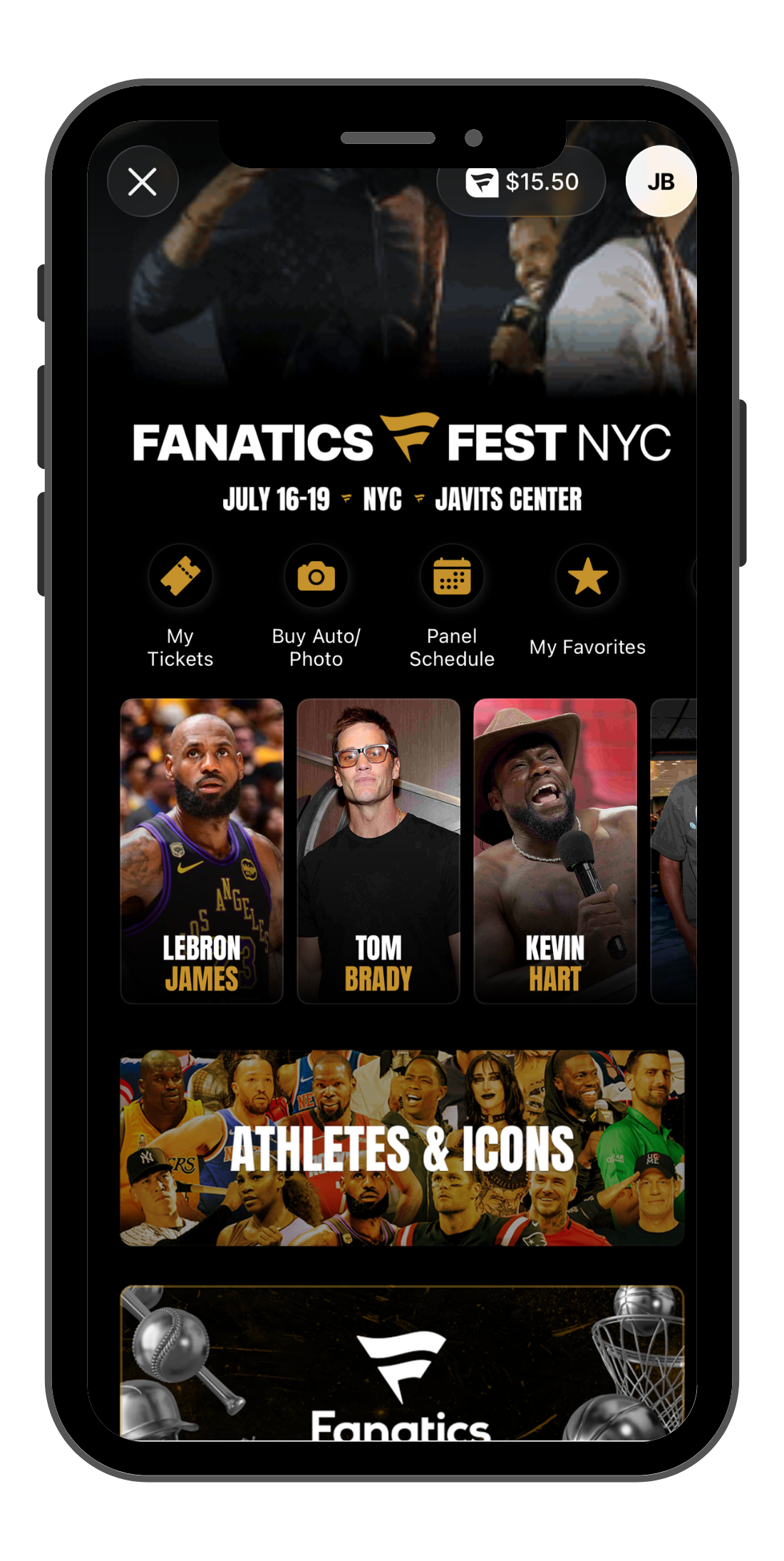
We're excited to welcome fans from around the world to Fanatics Fest NYC! If you're traveling internationally, here's everything you need to know about accessing your tickets and getting into the event.
Step 1: Try Downloading the Fanatics App
Once you arrive in the United States, we recommend trying to download the Fanatics Fest app first.
Please note that app availability is determined by your Apple App Store or Google Play account—not your physical location. This means some international visitors may still be unable to download the app, even after arriving in the U.S., depending on their account settings.
If you're able to download the app, you'll have access to your tickets and event information all in one place.
If You Can't Download the App
If you're unable to download the app, don't worry—we've got you covered.
We'll send your tickets directly to the email address used to purchase them. From there, you can:
- Print your tickets before you arrive, or
- Save them to your Apple Wallet or Google Wallet for quick and easy entry.
Need Help When You Arrive?
If you're unable to access your tickets for any reason, stop by any Guest Services or Help Desk location at Fanatics Fest NYC.
Our team can quickly assist you and print a scannable ticket so you can get you into the event as quickly as possible.